
This past weekend, I was thirty minutes into going through student spiral review responses and taking notes on what students I needed to pull for small groups when it dawned on me. I thought to myself, “I can use a Google Form for this and literally save hours!!” As such, the Google Form creation began! If you are curious about how to do this or are new to Google Form, feel free to read below and comment/ ask your questions.
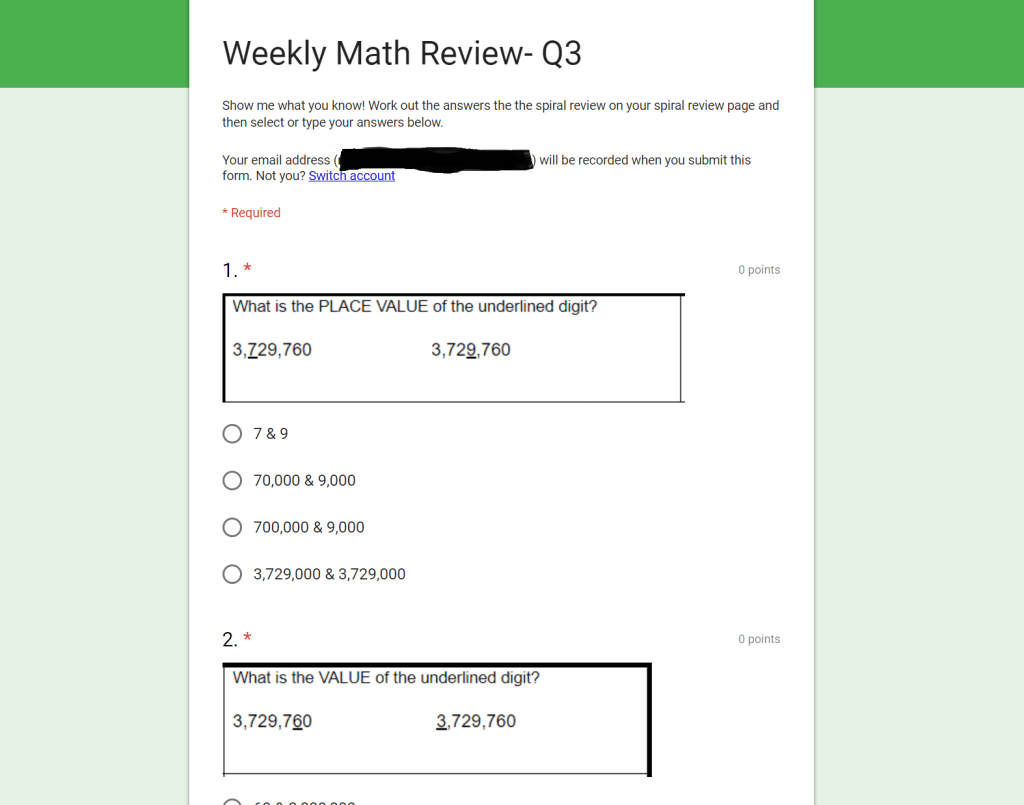
My process:
Step one: I was concerned about finding a way to quickly and efficiently use the problems from the Spiral Review that was already created. I turned to the handy dandy Snipping Tool app on my Windows computer and snipped and saved a picture of each question (the Snipping Tool has made my life 500 times easier than it was before).
Step two: Next, I created questions and imported the images I had saved to my desk top.
Step three: I numbered the problems and chose whether I wanted to make the questions open-ended short answer or multiple choice. I ended up choosing a mix of the both. For Google to auto-grade student work, you have to specify exactly what the answer is, and on several questions I knew students would include/ exclude spaces, commas, etc. and it would be difficult for Google Forms to successfully auto-grade.
Step four: Finish up your answer choices/ question writing.
Step five: Liberate yourself from grading/ marking papers on the couch for hours!! Go to settings (the wheel at the top) and click the “Quizzes” tab and select “Make this a quiz” and… voila! Life is good.
You may want to go to settings and also have Google collect email addresses with responses (from their Google Login- it worked great at my school because all students have a Google email) or limit the number of responses a student could make/ if they can see the answer key upon completion. Otherwise, you’ll want to create a question for names.
If you want to take a grade on it, you’ll need to assign point values. I solely was looking at the wonderful analytics Google Forms creates for you under the creator tab called “responses” I am able to see exactly who missed what questions and what common mistakes were.
Step six: Go through your Google Form’s problems, click each question and go to where it says “ANSWER KEY”. You will select the correct multiple choice answer for each problem. For short answers, you must specify the answers that will be correct. Keep in mind the variations of responses students might use in math. I wrote both versions of whole numbers with and without commas.
Step seven: Let freedom ring and save those copies! Students can use whiteboards or, the even more eco-friendly, Boogie Boards (which we are currently trying to write a grant for- please s/o to me with helpful tips/tricks if you’re a regular classroom Boogie Board user). I also am contemplating running copies of a class set on card stock (for longevity) and using these plastic sleeves I ordered off of Amazon that will allow students to write on the pages with expo and then wipe-off to erase.
Cons of spiral review answers being submitted to Google Form: having to make a form with each week and students aren’t able to save their answers if they run out of time in class and come back to finish the next day.
 Education with Meaning